
 I-Share
Export Records from OCLC Connexion Client to Alma
Last updated: October 19, 2026
This document identifies the typical process for exporting records to Alma using the Connexion Client service. These instructions assume that you have already configured Connexion Client for export. Connexion Client supports configuring export destinations, as shown on Configuring Connexion Client for Export to Alma. Only one destination may be selected at a time. When exporting, Alma will accept only a bibliographic record; Alma cannot create inventory at the same time as import using these export methods.
CARLI encourages library staff to consult OCLC's Connexion Client documentation for resources on searching and navigating Connexion and using any OCLC-specific functionality.
Contents
- Open Connexion and Connect to WorldCat
- Select Your Export Destination
- Export a Single Record
- Export Multiple Records at One Time
- Errors and Troubleshooting
Open Connexion and Connect to WorldCat
- Open OCLC Connexion Client 3.1 on your workstation using a desktop shortcut or menu item.
- Connect to WorldCat using the File menu > Logon or Ctrl+F1.
- Select your authorization and password, then click OK.
- On a successful logon, a welcome screen will appear. Click Close to clear the message.
You may now choose to search WorldCat, search your online save file, search local save files, or create a new bibliographic record and save it to WorldCat.
Select Your Export Destination
Since Connexion Client supports several saved export destinations, such as the network zone or an institution zone, it is a good practice to verify that you have selected the correct destination before beginning.
- Go to the Tools menu > Options.
- Select the Batch tab.
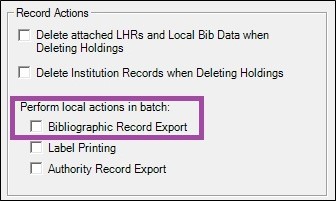
- Under Record Actions > Perform local actions in batch, make sure that Bibliographic Record Export is unchecked.
- Click Apply.
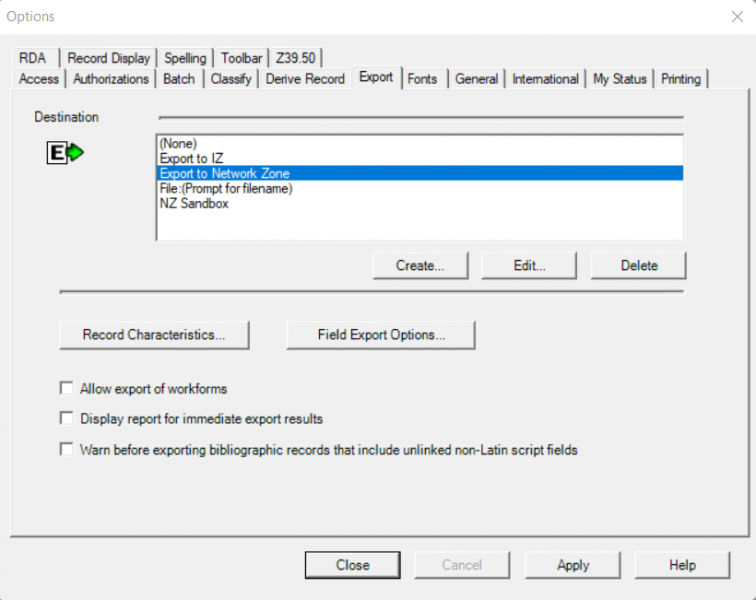
- Select the Export tab.
- Select the destination from the list of configured options, then click Apply.
- Click Close.
Export a Single Record
Begin by searching WorldCat or a save file for a bibliographic record that matches the resource that you have to catalog. You may need to review several different records before identifying the correct choice.
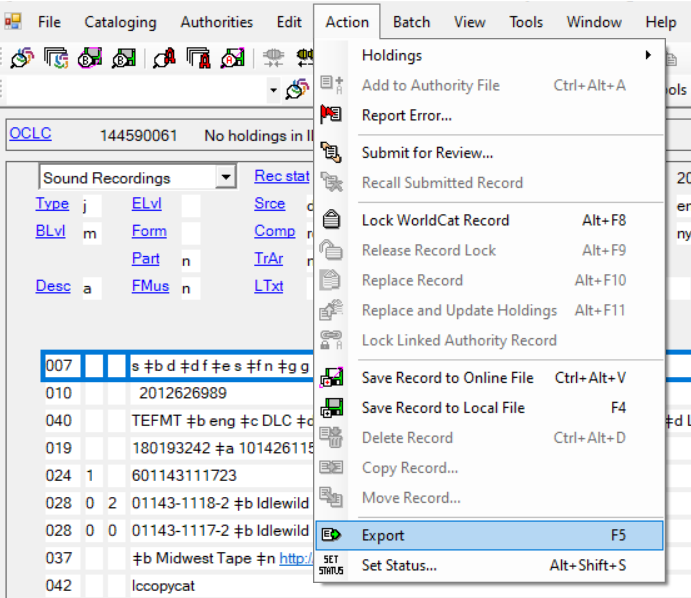
- While viewing the record that you want to export, click the Action menu > Export, or use the F5 key.
- Connexion client will open a Gateway Export Status window, attempt to connect to Alma and load the record. The status window shows the progress of the connection, and if the export is successful, the status window will display a success message along with the MMS ID number of the exported record. If the export is unsuccessful, the window will provide an error message.
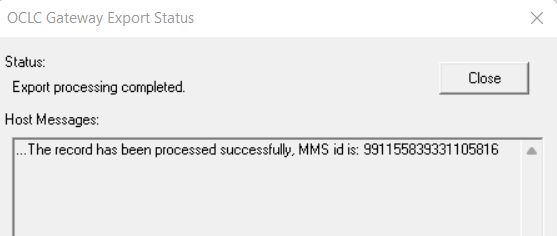
- You may copy the MMS ID from the message, then use that record ID to search in Alma for the record using an All Titles search. Otherwise, use the OCLC number to search.

- Click Close on the status window.
Export Multiple Records at One Time
The Connexion Client allows catalogers to search for and save records to a local save file. Catalogers may then prepare the records further, such as updating records to replace the WorldCat copy, or adding local data for use in Alma. Records saved in a local file may also be exported through the Gateway Export, either one at a time as shown above, or multiple records at a time.
The following instructions would apply for a cataloger who has downloaded records to a local save file. Refer to OCLC's Connexion Client documentation for more details on searching and downloading records.
- Connect to WorldCat using File > Logon, or Ctrl+F1.
- Select the correct authorization and click OK.
- Click Close to clear the welcome screen.
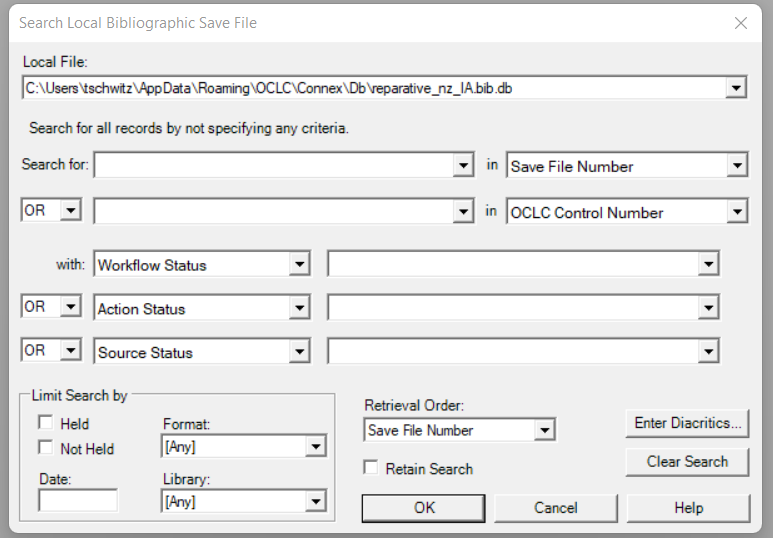
- To search your downloaded records, go to the Cataloging menu > Search > Local Save File, or F3.
- Click OK without entering any search values to retrieve all records in the local file.
- While viewing the save file record list, select multiple records that are ready to add to Alma.
- Click the Action menu > Export, or F5.
- For each selected record, Connexion will display the Gateway Export Status window to show whether Connexion succeeds in sending the record to Alma. On success, you will see an MMS ID for the exported record.
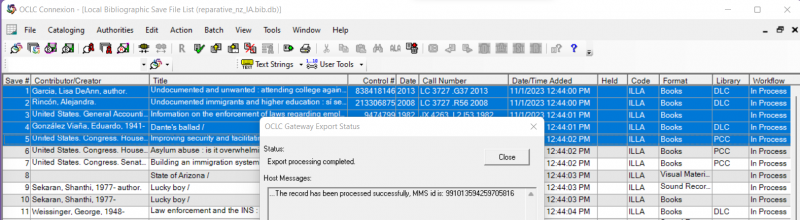
- Click Close on the Gateway Export Status window, and then a new status window will appear until all selected records have completed. The cataloger will have to attend to this button interaction.
- Disconnect from WorldCat using File > Logoff, or Alt+F1.
The Gateway Export Status window does not identify which record is being exported. If the Status window reports "Import Failed" with an error message, you may need to manually review records in the save file against records in Alma to see if updates occurred. As a result, CARLI finds this method of exporting multiple records to Alma as less effective than other options. Catalogers may wish instead to export records to a file, then import in bulk using an import profile.