
 I-Share
How-To: How do I change my Primo VE password?
This document is intended for users who do not use a single sign-on service to connect to their library's services.
If you connect to library services using your institution's sign-on service (e.g., a Microsoft login), follow your institution's instructions for resetting passwords.
Access to Primo VE
The Primo VE discovery environment for your catalog is available through I-Share. Use the Select Library list to choose your home institution.
Users with the Patron role may sign into Primo VE using the Sign In option in the menu bar.
Password Requirements
These are the requirements for Primo VE passwords:
- Passwords must be at least 8 characters long.
- Passwords cannot include the user name or any commonly used password (e.g., “password”).
Changing My Password
When you are logged into Primo VE, you may change your password using the Library Card screen.
- Login to Primo VE, if you haven’t already, by using the Sign In button.

- Enter your user ID and password, then select LOGIN.
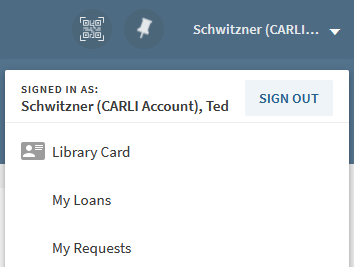
- Your name should now appear in place of the Sign In and Menu buttons. Select your name to view the user menu, then select Library card.
- Select the Personal Details tab.

- Locate and select the Update Login Credentials link.
- Enter your old password, then enter your new password and confirm the password. Click Save when done.
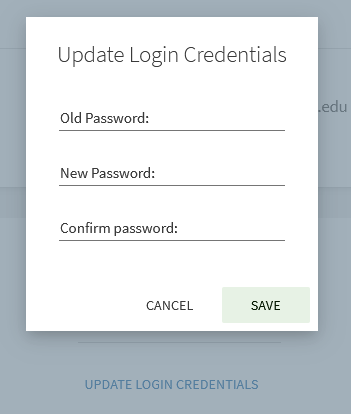
When you click save, the change password screen will alert you to any errors:
- If you don’t enter the Current Password correctly.
- If the text in New Password and Confirm New Password don’t match.