
 I-Share
How-to: How do I change my Alma password?
This page is intended for users at institutions that do not use a single sign-on service (e.g., Microsoft, OpenAthens, etc.) to login to Alma. If you use your institution credentials to sign in to Alma, then follow your institution's procedures for updating passwords.
Access to Alma
Login to Alma at https://i-share-xyz.alma.exlibrisgroup.com/. replace "xyz" with your institution's three-letter code.
Users with Alma staff roles may login to Alma.
Password Requirements
These are the requirements for passwords:
- Passwords must be at least 8 characters long.
- Passwords cannot include the user name or any commonly used password (e.g., “password”).
Changing My Password
- When you are logged into Alma, you may change your password after selecting the user menu from the Alma menu bar.

- Select the Change Password option.
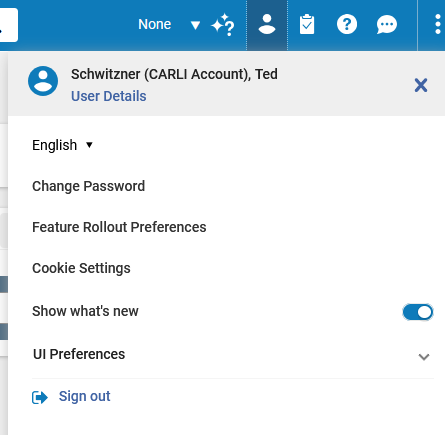
The Change Password option is near the top of the user menu. - Enter your current password first. Then enter the new password you want to set in the New Password and Confirm New Password boxes. Click Save.
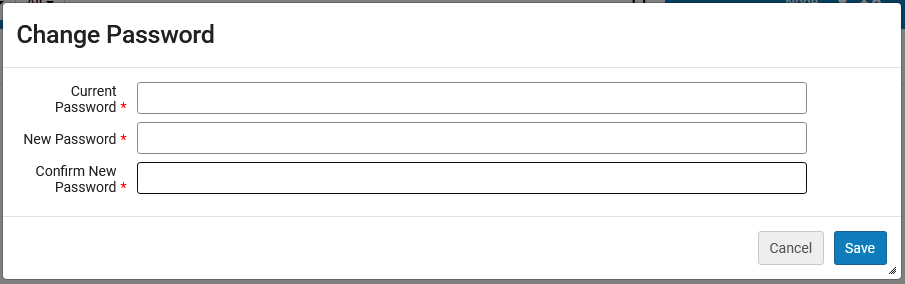
When you click save, the change password screen will alert you to any errors:
- If you don’t enter the Current Password correctly.
- If the text in New Password and Confirm New Password don’t match.