
 I-Share
Enable Exact Title Search by Title or Title:Subtitle
June 1, 2026
What is Exact Title Search by Title or Title: Subtitle?
This new, optional feature for Primo VE Advanced Search was first added in the August 2025 release. When this option is turned on, if the end-user is searching in Advanced Search for the book Water: Perspectives, Issues, Concerns, they can enter the Title equals exact phrase search string either as Water: Perspectives, Issues, Concerns, or simply as Water, and the book's record will be retrieved in the results. That is, they can enter the 245 $ab (complete title string), or just the 245 $a, and both will retrieve the record that has a subtitle in $b. Previously, a Title equals exact phrase search for only Water would NOT retrieve the book Water: Perspectives, Issues, Concerns because of the presence of the subtitle.
Configuration has been enabled in all I-Share library Institution Zones (IZ) via distribution from the CARLI Network Zone (NZ), and the necessary re-indexing of bibliographic records has been completed. I-Share libraries that wish to use this new option must follow the steps below to turn it on in their IZs. Once this has been turned on, your library users may need to be instructed as to how to use the feature in the Advanced Search in Primo VE.
Note: This configuration can be done in a Primo VE TEST View first so you can compare the results with and without the option.
How I-Share Libraries can Configure this Feature in the IZ
To allow this option to be used in Primo VE, I-Share libraries must first enable the "Equals exact phrase" Search Operator in the Advanced Search of your Primo VE View. To complete this configuration, you must have the Discovery – Admin role.
Note: This configuration can be done in a Primo VE TEST View first so you can compare the results with and without the option.
1. Go to Alma Configuration Menu > Discovery > Display Configuration > Configure Views and choose to Edit the View you wish to turn on this option in.
2. Click into the Advanced Search Configuration tab.
3. Scroll down to the "Search Operators" section.
4. Click Customize in the upper right corner of the section to enable editing.
5. The page will reload. Scroll back down to the "Search Operators" section. Now the toggles in the "Active" column will be editable.
6. Click the toggle to turn ON the "Equals exact phrase" line.
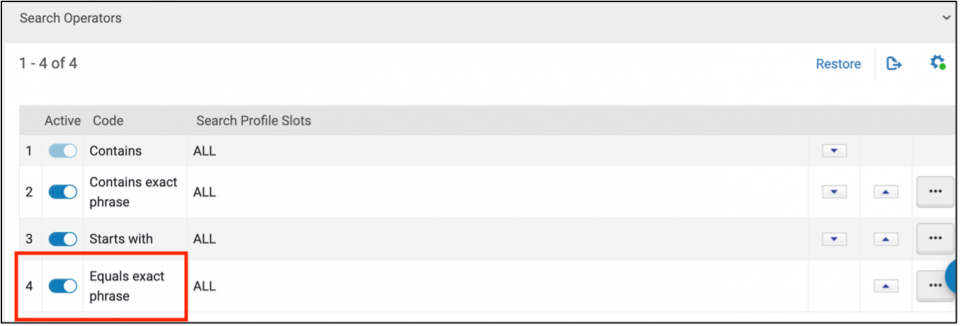
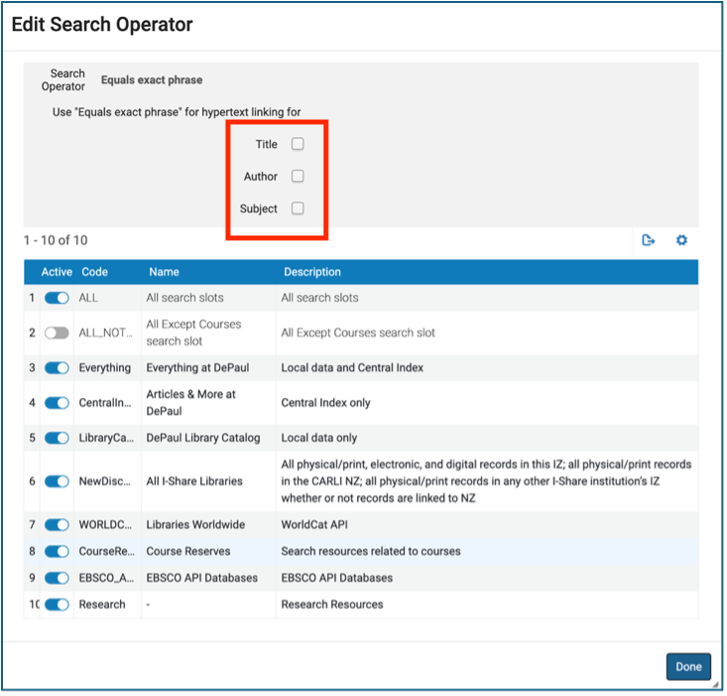
7. To ensure that Hypertext Linking Definitions in this Primo VE View do not change their current behavior (see further information in the last bullet in the Ex Libris Documentation section below), click on the Ellipsis button in the "Equals exact phrase" line and choose Edit.
8. In the "Edit Search Operator" pop-up box, uncheck the boxes next to Title, Author, and Subject and click Done.
9. Optional: If you wish to change the order that the options appears in the Advanced Search dropdown menu in this Primo VE View,
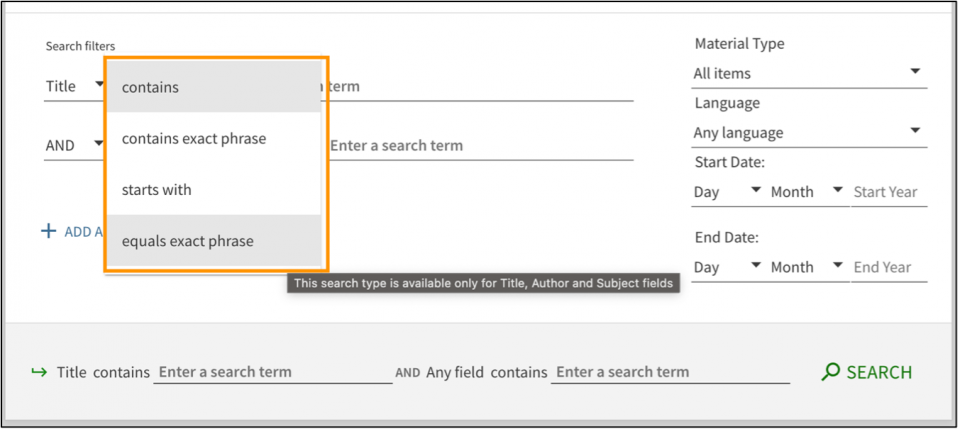
you may adjust the order with the arrow buttons in this configuration menu:
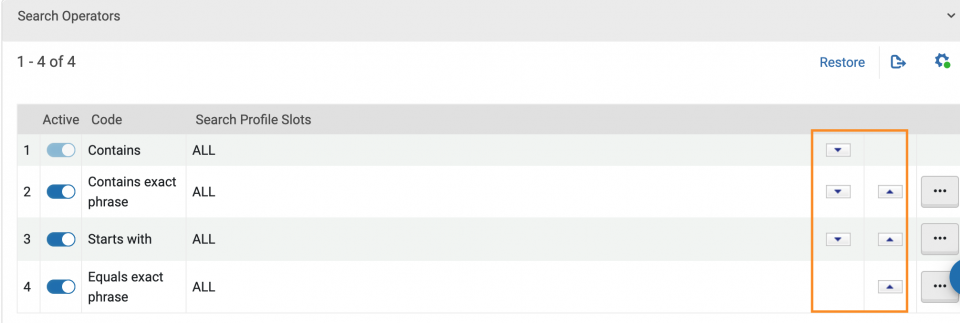
Note: These settings are specific to each Primo VE View.
10. Now, when a user selects Advanced Search in Primo VE and searches by Title with the equals exact phrase option, the item Water: Perspectives, Issues, Concerns will be retrievable if the user searches only the first word Water (MARC 245 $a) or the title and subtitle Water: Perspectives, Issues, Concerns (MARC 245 $ab).
Ex Libris Documentation on this Feature
- August 2025 Primo VE Release Notes under heading Exact Title Search by Title or Title: Subtitle
- Performing Advanced Searches, see "equals exact phrase" entry
- Configuring Discovery Views for Primo VE under heading "Configuring Advanced Searches > Search Operators"
- Configuring Hypertext Linking Definitions for Primo VE, see the Note near the bottom of the page that explains that leaving the three boxes for Title, Author, and Subject checked in Step 8 above will override the default Hypertext Linking Definitions in Primo VE and may change current behavior.