
Uses for Alma Extended Export
Last edited September 30, 2026.
Alma Extended Export
 The Alma Extended Export is one of three export options present on the Portfolios tab of the Electronic Service Editor level within an Electronic Collection. The icon which looks similar to the mocked up image (which is enlarged) at the left is pictured as a white page with rounded corners, outlined in turquoise blue, with the upper right corner dog-eared/folded down into a triangular shape, and a right pointing arrow coming out of the side. When Alma users click on the icon, they are presented with three export options from a drop-down menu: Extended Export, Excel (current view), and Excel (all fields).
Note: the icon is present in other areas of Alma, but for this documentation we will be focusing on its presence within the Portfolios List (button to the right of an Electronic Collection Name in Alma search results) and the Portfolios tab (within the Alma Electronic Service Editor level of an Electronic Collection).
The two Excel options download a condensed version of the metadata available, whereas the Extended Export is more comprehensive (see the table named, "Excel File Fields" in the linked Clarivate documentation for details on everything included in the Extended Export download file), and includes details about the ERM lifecycle. The Extended Export is a snapshot of how your e-Collection's portfolios are in that moment in time, which can act as receipt if and when settings need to be restored.
In addition to being a receipt, Extended Export can act as a portfolio load file and is an accepted format for using the Alma Electronic Collection service-level Portfolio Loader. You can also use this download file to make changes in bulk to the portfolios in your e-Collection.
Here are a few uses of the Alma Extended Export:
Re-syncing an Electronic Collection
Modifying Static URLs or Parser Parameter URLs in Bulk for Portfolios
Modifying Coverage for Portfolios in Bulk
re-syncing an electronic collection
Occasionally, an e-Collection active in your Institution Zone (IZ) and linked to the Community Zone (CZ) will fall out of sync with the CZ e-Collection. The portfolio count will differ from the IZ going to the CZ. The quickest way to resolve this is to select Add all portfolios from the Community from the drop-down menu in the Portfolios tab of the Electronic Service Editor level of the Electronic Collection. However, there are times that this function does not resolve the difference in portfolios. When this does not work, you can use an Extended Export file of the Electronic Collection as one of the steps to re-sync the e-collection. The detailed steps of how to address this issue are in the Re-Syncing an Electronic Collection in Alma CARLI documentation.
Return to Here are a few uses of the Alma Extended Export
modifying static urls or parser parameter urls in bulk for portfolios
Swank Top 1000 is going to be the example electronic collection for this scenario. CARLI members can select this package from the Database Brokering System and then, activate it in Alma. Members who have activated the e-Collection in Alma have found that the Static URLs for the portfolios were not link resolving to the institution's unique Swank page nor linking to the video page on Swank's platform. What the member institutions did was apply a Static URL (override) to the 1000 video portfolios in their Alma e-Collection to ensure each video had the correct linking syntax and that the linking would resolve to their institution's Swank page and the correct Swank video page. It was also later discovered that the 1000 videos change during the year, new videos are added and current videos are removed, so that this procedure of modifying the linking syntax for portfolios is a recurring workflow. Here is how the Extended Export can be used to make URL changes in bulk to portfolios.
1. Search for "swank" (or your e-Collection name) in the Alma persistent search bar using Electronic collection > Keywords > swank > Institution Zone search scope (IZ house icon).
2. From the search results, click on the three ellipses to the right of the electronic collection name, and select Edit Full Text Portfolios from the drop-down menu.
3. From this tab (Portfolios) in the Electronic Service Editor, click on the Export icon in the right (as shown above, though it is much smaller in Alma), and select Extended Export from the drop-down menu.
4. Once, the file downloads (this one is rather large and takes some time), you open the file and go to the URL column*. To do a bulk modification on portfolios, use the Replace feature in Excel. For this specific e-Collection, the bkey=https://permalinks.swankmp.net needs to be replaced with https://digitalcampus.swankmp.net/yourschoolsSwankID/watch. The part "yourschoolsSwankID" will be your campus' abbreviated name and a number. The find and replace feature should then replace all the former bkey parser parameters with the https:// static URL override.
5. When the URL column looks correct, save your changes.
6. From here, log into Alma (if you are not already logged in) and return to the Portfolios tab in the Electronic Service Editor level of the Swank (your e-Collection) e-Collection. Click on the Load Portfolios button.
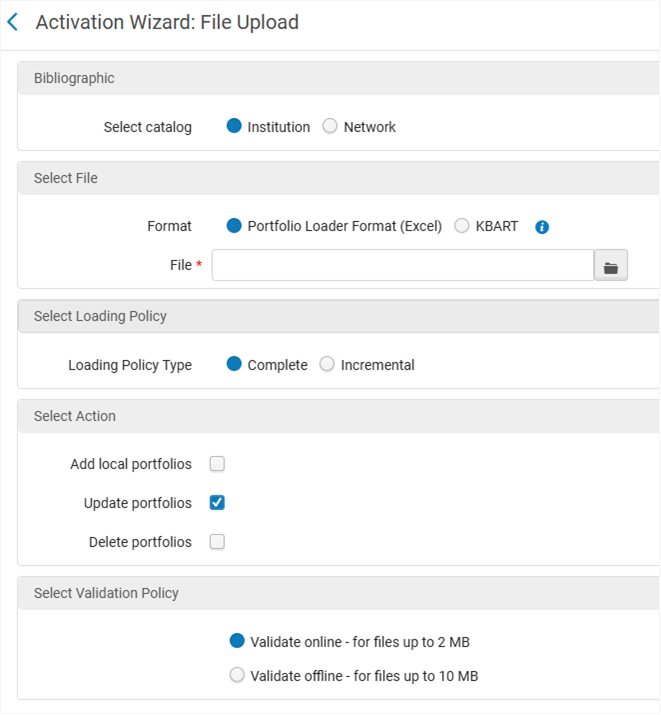
7. In the Activation Wizard, use these settings:
Select these radio buttons: Institution, Portfolio Loader Format (Excel), Complete, and Validate Online
Check the box for: Update Portfolios.
You will upload the file as the last step. If you try to do these steps in the order they are in on the screen with the File Upload occurring before the Loading Policy, it will undo the previous settings you have set. We recommend uploading the file as your last step to avoid re-setting the settings. When the settings look correct and your file upload is there, click the Next button. An image of this screen is displayed at the right.
8. On the next screen of the Activation Wizard, an Activation Summary will be provided. Review the summary. If it looks correct, click the Load button. If it looks incorrect, click the left pointing chevron next to the title of the screen that reads, "Activation Wizard: Activation Summary."
9. When the job finishes, you will receive an email and a notification box will pop out from the right in Alma letting you know the job has finished. You can then look up your portfolios and check the Linking tab and the Test Access button on that tab to ensure the changes were applied.
*From Step 4, if you have previously performed an Extended Export and replaced URLs in that export file, then you will want to do this step differently. You will filter the URL column for "Blanks." Newly added portfolios will not have data in the URL column (only your previously edited portfolios will). Once, you have the Blanks filtered proceed with creating the URL format the newly added portfolios should follow. When you are done with those changes make sure to remove the filter and save your changes before proceeding with the next steps.
Return to Here are a few uses of the Alma Extended Export
modifying coverage for portfolios in bulk
For this section, we'll continue using the Swank example. Repeat Steps 1 - 3 from the above section, "Modifying Static URLs or Parser Parameter URLs in Bulk for Portfolios."
When you get to Step 4, you will add dates to the LOCAL DATE COLUMNS: FROM_YEAR, TO_YEAR, FROM_MONTH, TO_MONTH, FROM_DAY, TO_DAY, FROM_VOLUME, TO_VOLUME, FROM_ISSUE, TO_ISSUE (what data you have).
Then, follow Steps 5 - 8 from the above section, "Modifying Static URLs or Parser Parameter URLs in Bulk for Portfolios."
Finally, for Step 9, you can review the date coverage statements by editing a portfolio and clicking on the Coverage tab. Compare it to the data you input into the date column(s) and confirm that the Local only radio button is selected.
You can repeat these steps for other columns of data in the Extended Export file that need to be modified in Bulk and tweaking how the data is input based on data type.
Two notes about modifying coverage:
- If you want to apply a rolling year embargo statement to the portfolios, use these two columns: PUBLICATION_DATE_OPERATOR and PUBLICATION_DATE_YEAR. For the PUBLICATION_DATE_OPERATOR column use <= to denote less than or equal to.
- In the PUBLICATION_DATE_YEAR column, make sure that the entire column of data is set to the number format of text. In Excel, to change the format of the data, look under Home tab, in the middle section of the ribbon that has a drop-down menu with General selected click the down arrow and select Text. This number format in your Extended Export Excel file will ensure that the correct number of years is applied without error in the Alma job.