
 I-Share
Add ISBN/ISSN to Primo VE Full Record Display Details
Revised July 21, 2025
The ISBN or ISSN are part of the Identifiers field Primo VE can display as part of the Details section of an item's Full Record Display. Note that patrons will see ALL Identifiers in the item's record and not only the ISBN or ISSN.
The full list of identifiers that can display are: LC, ISBN, ISSN, ISMN, OCLC, PUBNUM, and GOVDOC.
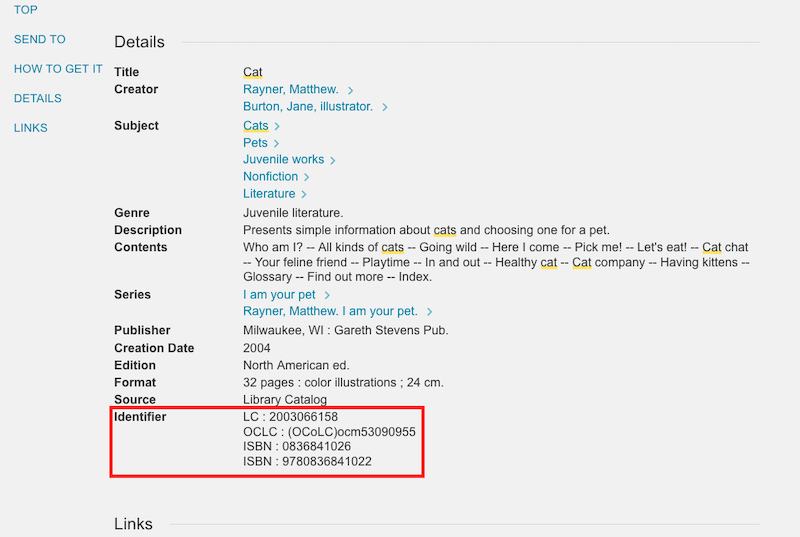
How to Add the Identifiers field to the Full Record Display Details
Alma Role Needed: Discovery Admin
- Go to Alma Configuration Menu > Discovery > Display Configuration > Configure Views.
- Select the View you wish to edit to open the View Configuration page.
- Select the Full Record Services tab.
- Select "Customize" to begin customizing the Full Record Services options. Note that if you have already customized the Full Record Services, you will see "Restore" instead of "Customize" on the page. "Restore" will remove any customizations you have already done to your Full Record Services information and reset the Full Record Display to the default Ex Libris settings. DO NOT click restore unless you are sure you want to remove all of the existing customizations!
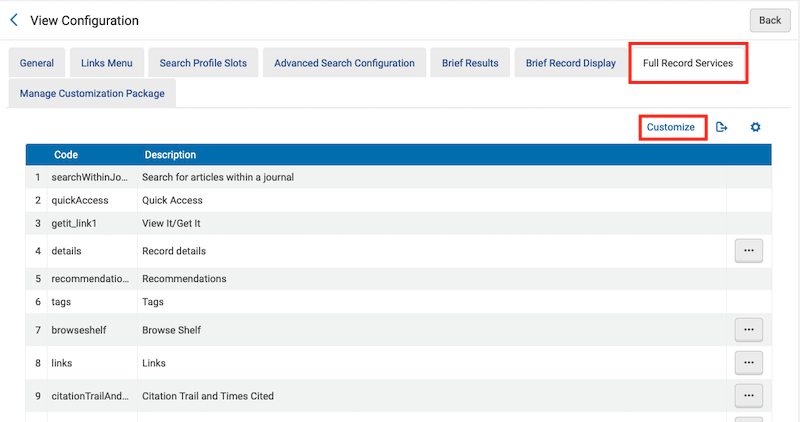
- Go to the "details/Record details" row and select "Configure" under the ellipsis.

- The Edit Full Display Details screen will open. Click "Customize" to customize what information appears in an item's Details. Note that if you have already customized the Full Display Details, you will see "Restore" instead of "Customize" on the page. "Restore" will remove any customizations you have already done to your Full Display Details information and reset the Details to the default Ex Libris settings. DO NOT click restore unless you are sure you want to remove all of the existing customizations!
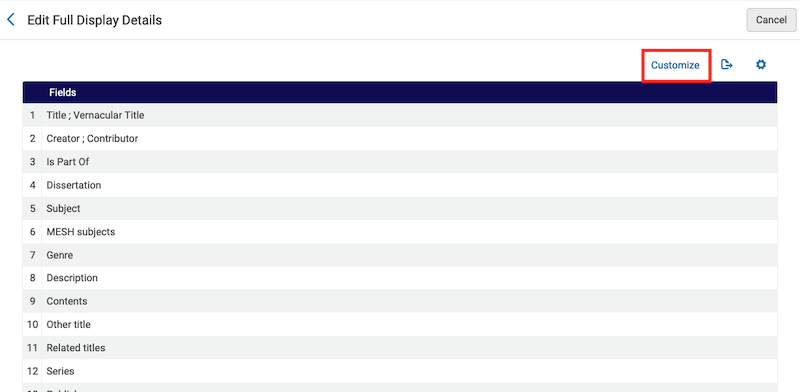
- To add a new field to the to the Details section, select "Add Field."

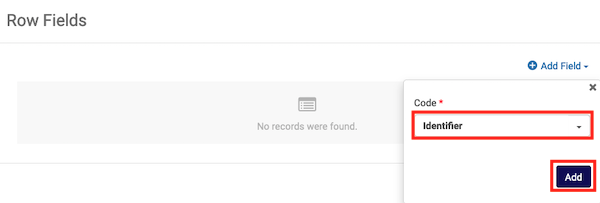
- A "Row Fields" window will open. Click "Add Field" to and use the code box to either scroll down the list of fields or to look up the Identifier field.
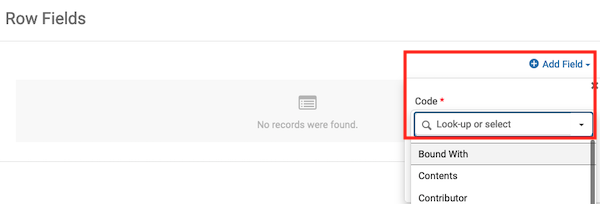
- Select the Identifier field and click "Add."
- The Identifier field will be added to the Row Fields box and be set to active. Click "Done" to add the new Row Field.
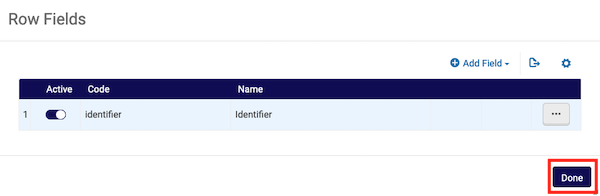
- The Identifier field will be added to the bottom of the Full Display Details field list. You may use the arrows to move the field up or down the list of display fields.
