I-Share
Tags in Primo VE
Created: 4/13/2021
What are Tags in Primo VE?
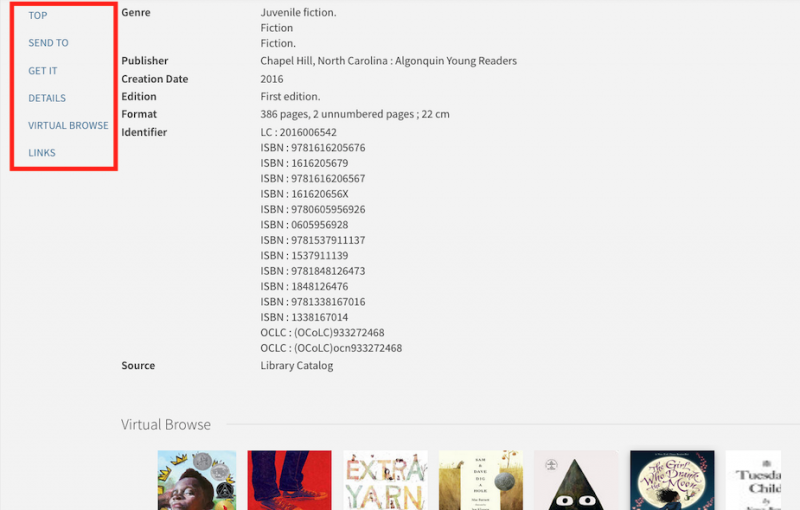
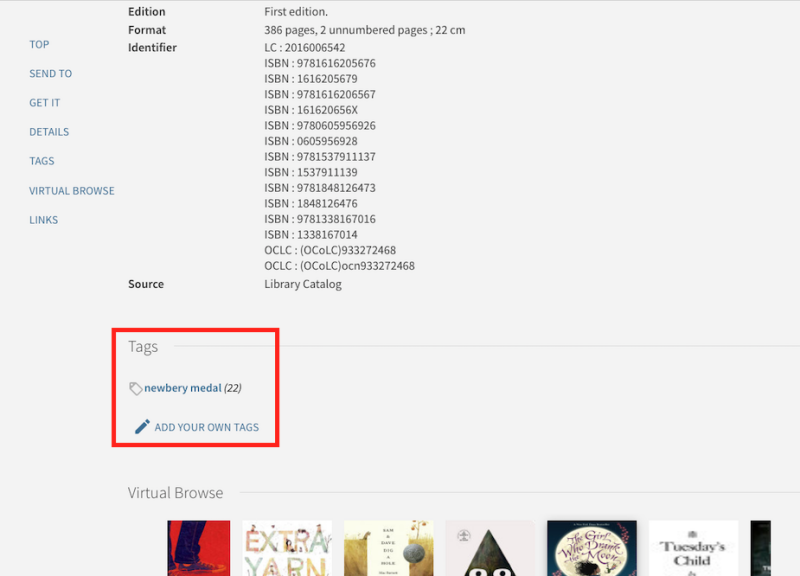
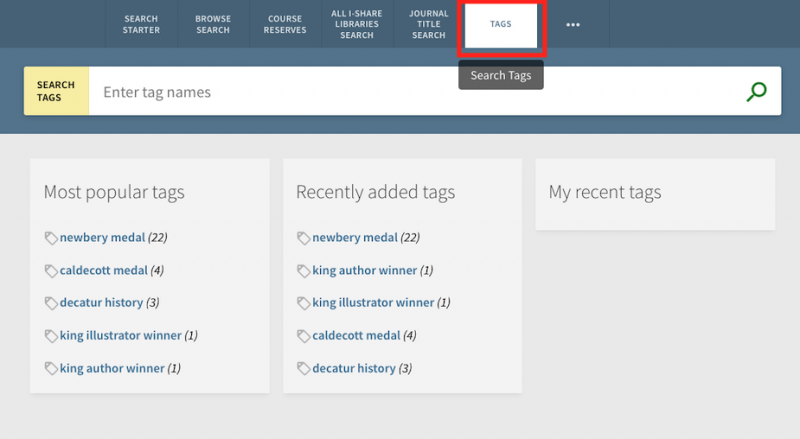
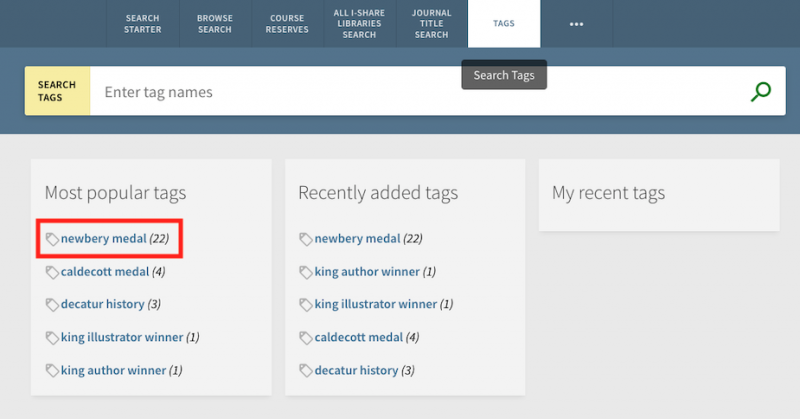
Tags are words or phrases that a signed-in Primo VE user can add to an item to help group or remember them. Tags can be found on the Full Details page of an item in Primo VE if a tag has been added to the record. All tags that have been created by users can also be found under the "Tags" link in the Links Menu of Primo VE. Only users who are signed into Primo VE can add tags, but any user can view tags. An example of a tag in an item's record can be seen below.
Full record of item:
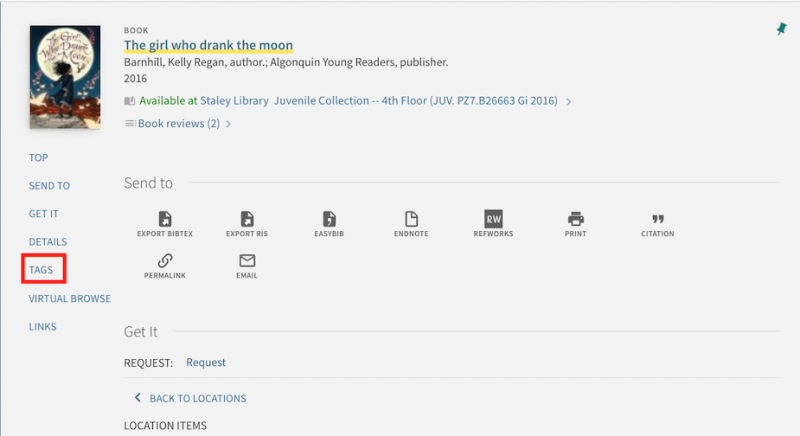
Tags below the item details section:
All tags under the "Tags" link in the Links Menu of Primo VE:
CARLI Recommendation for Tags in Primo VE
The current CARLI Recommendation for tags is to turn them off/do not enable tags in Primo VE.
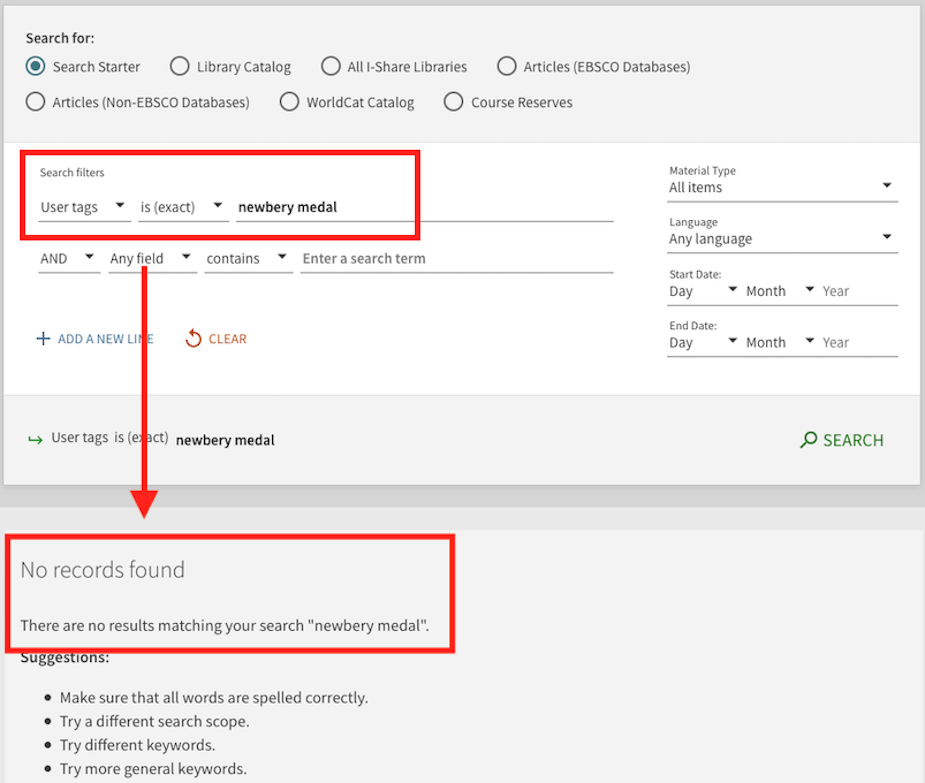
As of this time, Ex Libris does not support in Primo VE for consortia. If a user clicks on the tag link on the Full Details page for an item or if they click the link for a tag on the tags list via the Tags link in the Links Menu, a search for the term will run, but no results will be provided:
When the search is run from clicking on the tag link, there are no results:
Turn Off Tags in Primo VE
By default, tags are turned off in Primo VE. If you turned on Tags in Primo VE, a link will be part of your Primo VE Links Menu. It may be visible on your main Primo VE page or might be under the additional Links Menu options that are accessed via the ellipsis button in Primo VE.

You will need the Discovery Admin role to turn off tags.
1. Go to Alma configuration > Discovery > Display Configuration > Configure Views.
2. Use the ellipsis button to Edit the View you wish to change.
3. Under the Links Menu tab, toggle off the row where Code = tags to make it inactive.
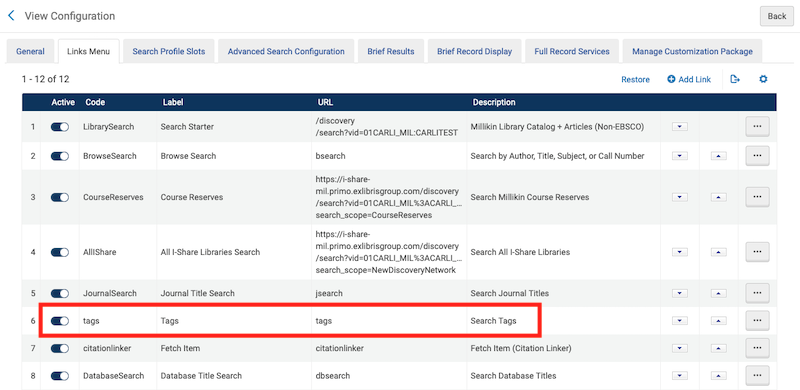
4. Once you toggle the row to be inactive, the row will move to the bottom of the Links Menu page and the toggle button will be gray.
5. The Tags link in the Link Menu will immediately be removed, as will the tag information on the Full Details page of an item record.