I-Share
Improving Alma/Primo VE Linking with Unpaywall
Last edited September 30, 2026.
What is Unpaywall?
Unpaywall is a free non-profit "look up" tool designed to improve open URL linking to open access content. Searching Unpaywall looks in their repository for a DOI match in their millions of citations for free and open access versions of articles and other material with a DOI (Digital Object Identifier). Setting up Unpaywall as a service in Primo VE will improve open access linking. Note that some documentation might call this service by its previous name: OpenDOI.
How to report errors in Unpaywall linking either to wrong citations or not free material?
Visit Unpaywall to get contact information for your specific issue and/or question. Examples of issues are DOI or citation errors, and also if the material found is not actually open access.
Which Alma configuration option to use?
In Alma, there are three different ways that you can configure the Unpaywall service to display in the View It section of Primo VE. Each method has pros and cons, but any option will provide improved access to your users.
1. Unpaywall via activating the Community Zone Unpaywall e-Collection
[CZ e-Collection ID 615310000000000937] is quick to set up. This is the Alma recommended option. It can be used with Display Logic Rules (DLR) and options to change the order of displayed links in Primo VE. More about this is on the Integrating Unpaywall for Discovery page in the "Activating the Unpaywall Collection".
2. Unpaywall as a Link Resolver Service
is relatively easy to set up. However, it cannot currently be used with Display Logic Rules in Primo VE nor with options to order the display of services. You can edit the display text shown in Primo VE.
3. Unpaywall as a General Electronic Service (GES)
is more complicated to set up and maintain, but it can be used with Display Logic Rules in Primo VE and with options to change the order of the display of services. You can set the display text shown in Primo VE with the GES Public Name.
Activating the Community Zone Unpaywall e-Collection
Unpaywall [CZ Collection ID #615310000000000937] is quick to set up. This is the Alma preferred option. It can be used with Display Logic Rules and options to change the order of displayed links in Primo VE.
Return to Which Alma Configuration Option to Use?
Setting up Unpaywall as a Link Resolver Service
You will need one of the following roles:
- Fulfillment Administrator
- General Systems Administrator
- In Alma, go to Configuration menu > Fulfillment > General > Other Settings. A mapping table will open.
- In the Mapping Table find the row: enable_open_access_services_from_unpaywall_api. Click on the three ellipses button to the right of the row and select "Customize." The parameter value field will become editable. In the screenshot below the mapping table is shown with the enable open access services from unpaywall api outlined in a red rectangle and the more actions drop-down menu with a right pointing red arrow next to it.
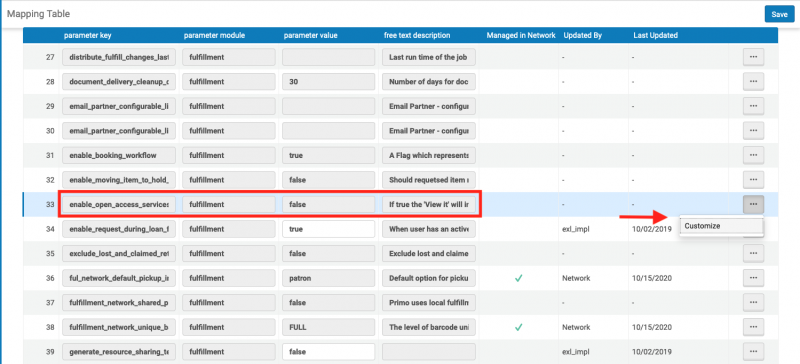
- Change the parameter value from false to true. This is shown in the screenshot below. The new value of "true" is outlined in a red rectangle.

- Click the Save button in the top right of the screen.
For more details about this parameter, see the "Other Settings Options" section of the Configuring Other Settings (Fulfillment) Clarivate documentation.
testing changes in primo ve
Once you have customized the mapping table, you may test the change in Primo VE to view the Unpaywall links.
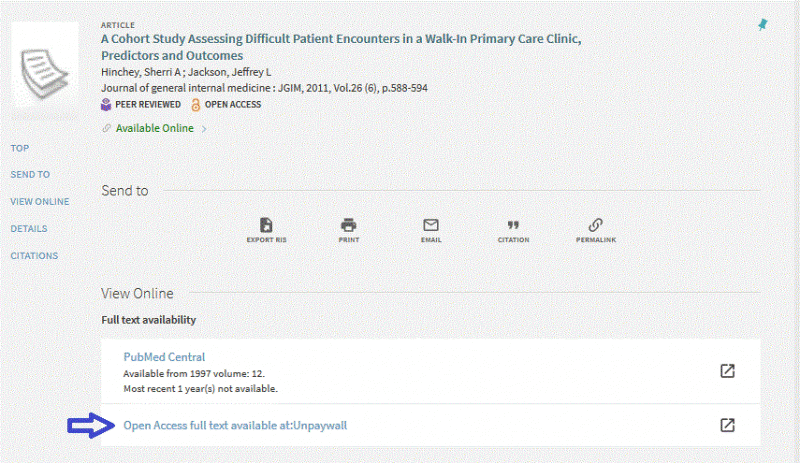
The default link text that will display in Primo VE is "Open Access full text available at:Unpaywall". You can change this default link text to "Open Access full text available in:" by customizing the label in Alma Configuration > Discovery > Labels > ViewIt > c.uresolver.availableOnline.open_access_full_text_prefix.
Note: changing this label may apply to other open access full text services beyond Unpaywall.
An example of Unpaywall set up as a Link Resolver Service displaying in Primo VE is pictured in the screenshot below. It is showing a record for the article, "A Cohort Study Assessing Difficult Patient Encounters in a Walk-in Primare Care Clinic, Predictors and Outcomes." There are two View Online Primo VE delivery services displayed and one of them is the default link text for Unpaywall. It has a blue outlined right pointing arrow next to the link text.
Return to Which Alma Configuration Option to Use?
Configuring Unpaywall as a General Electronic Service (GES)
You will need one of the following roles:
- Fulfillment Administrator
- General Systems Administrator
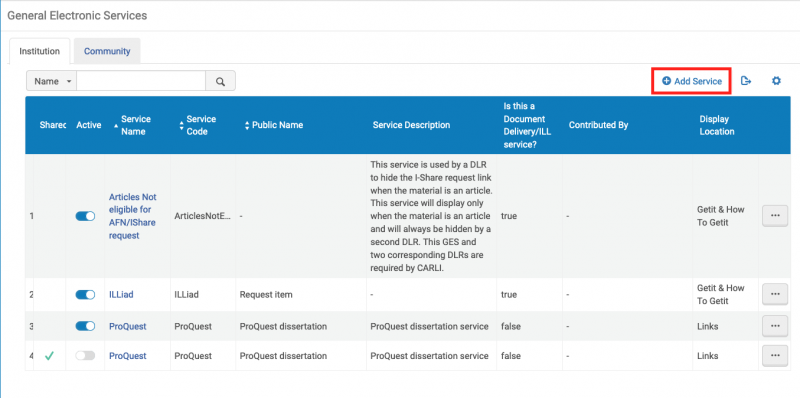
- Go to Alma Configuration Menu > Fulfillment > Discovery Interface Display Logic > General Electronic Services. The General Electronic Services Screen will open.
- On the Institution tab, click on "Add Service." This is shown in the screenshot below with a red rectangle outlining the Add Service button.
- Add the following to the Add Service pop up form (as shown in the screenshot below):
Service Code: Unpaywall
Service Name: Unpaywall
Public Name: You may choose a public name. CARLI Recommendations: Look for Open Access version OR Open Access Full Text Available at Unpaywall
Is this a Document Delivery/ILL service? Yes (This will reveal the Display Location field.)
Display Location: Getit, viewit & How To Getit.
URL Template: http://oadoi.org/{rft.doi}
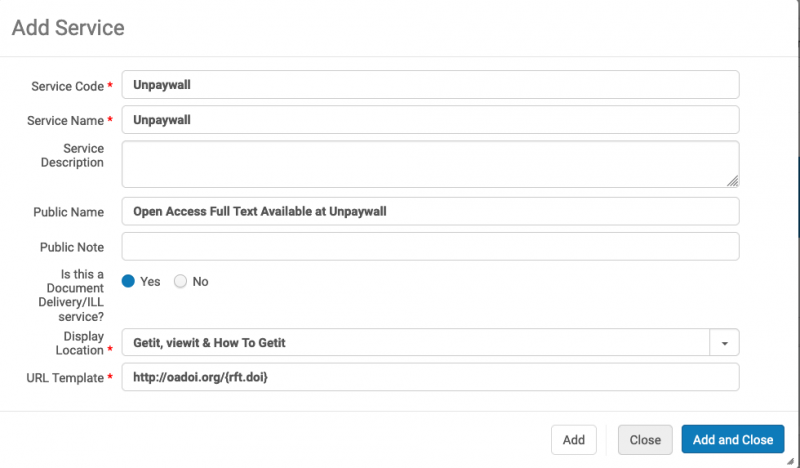
- Click the Add and Close button to complete the base service.
Add Service Availability Rules for When to Display Unpaywall link
Next, add Service Availability Rules to control when the Unpaywall service link is displayed or not in Primo VE. You may create any Service Availability Rules that you desire. For example, you may not want the Unpaywall link to display for books, or for items without a DOI. Steps for how to configure this example rule set are detailed below.
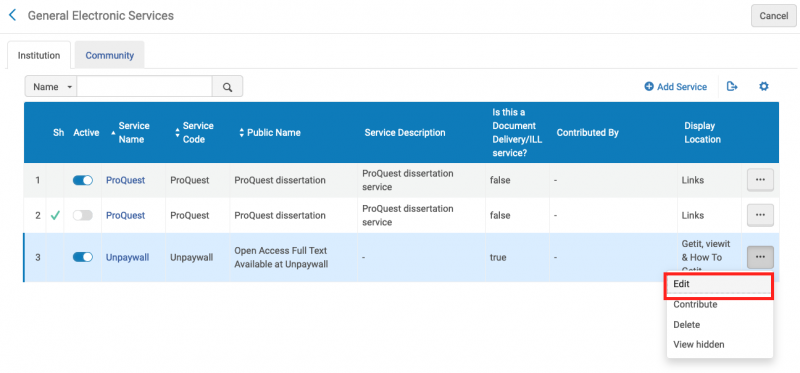
- Go to Alma Configuration Menu > Fulfillment > Discovery Interface Display Logic > General Electronic Services. The General Electronic Services Screen will open.
- In the Unpaywall row, click on the three ellipses button and select Edit from the drop-down menu. This is shown in the screenshot below. The Edit option is outlined in a red rectangle.
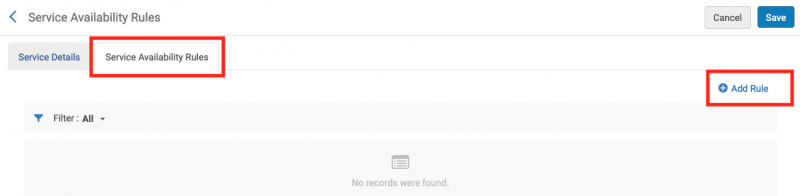
- The Service Details screen will open. Click on the Service Availability Rules tab (as shown in the screenshot below and outlined in a red rectangle). Then click the Add Rule link (this is also outlined in a red rectangle in the screenshot). The Edit Rule page will appear.
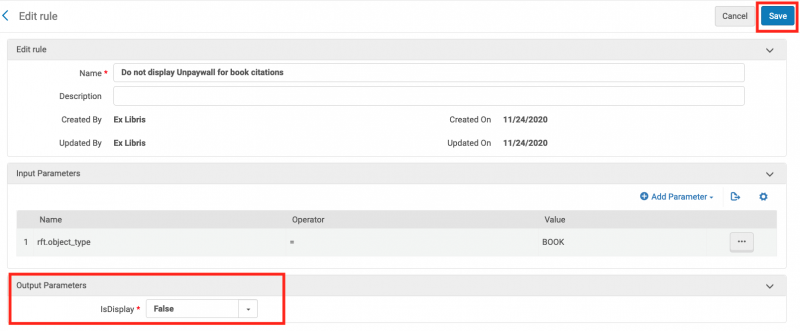
- In the Edit rule section, add a descriptive Name for the rule. In this example, the rule name is: Do not display Unpaywall for book citations.
- In the Input Parameters section of the page, click the Add Parameter link.
- In the Add Parameter pop-up screen that appears, use the drop-down options to choose the Name and Operator fields and then add the Value field. (These are shown in the screenshot below outlined in red rectangles.) To not display Unpaywall for a book, the following are added:
Name: rft.object_type
Operator: =
Value: BOOK
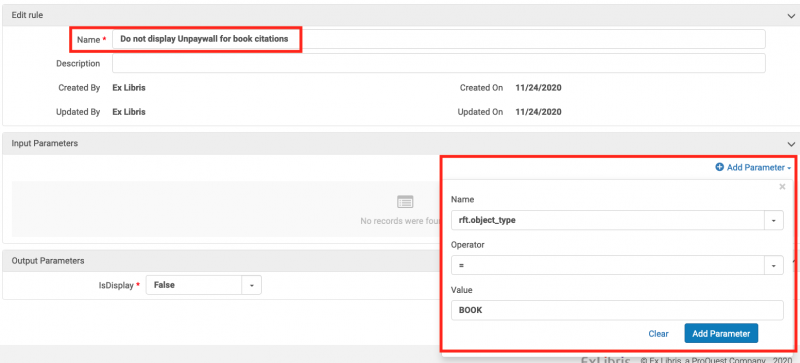
- Click the Add Parameter button.
- Change the Output Parameters IsDisplay to False so that the service will not display when the criteria are met. Click "Save" at the top of the page and you will be returned to the Service Availability Rules list. These are shown in the image that follows outlined in red rectangles.
- To add a second Rule, such as to not display the Unpaywall service if the item lacks a DOI, click the Add Rule link again. The Edit Rule page will appear.
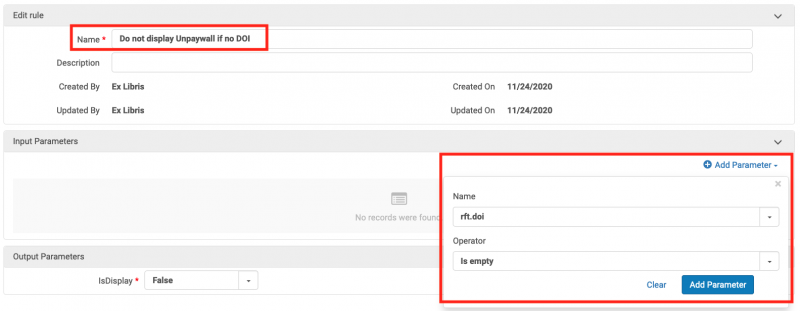
- In the Edit rule section, add a descriptive Name for the rule. In this example, the name is: Do not display Unpaywall if no DOI.
- In the Input Parameters section of the page, click the Add Parameter link.
- In the Add Parameter pop-up screen, use the drop-down options to select the appropriate Name and Operator fields. (These are shown in the screenshot that follows outlined in red rectangles.) To not display Unpaywall if there is no DOI, the following are added:
Name: rft.doi
Operator: Is empty
- Click the Add Parameter button.
- Change the Output Parameters IsDisplay to False so that the service will not display when the criteria are met.
- Click the Save button at the top of the page and you will be returned to the Service Availability Rules list.
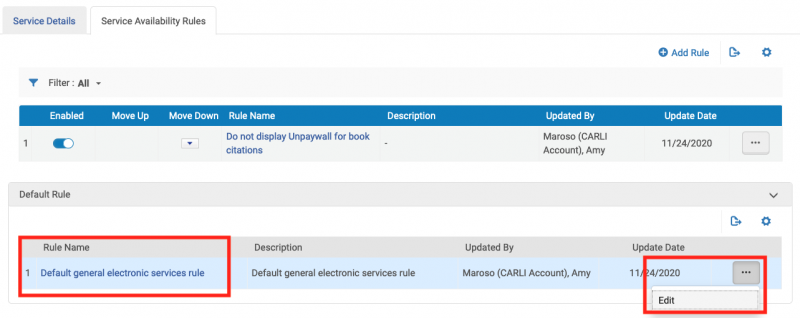
- Since we set the two example Service Availability Rules to "IsDisplay=False" in Steps 8 and 15 above, we now need to change the Default GES rule to IsDisplay=True. To do this, go to the Default rule section at the bottom of the Service Availability Rules page. Select the Default general electronic services rule, click on the three ellipses button and select Edit to edit the rule. (These are shown in the screenshot below outlined in red rectangles.)
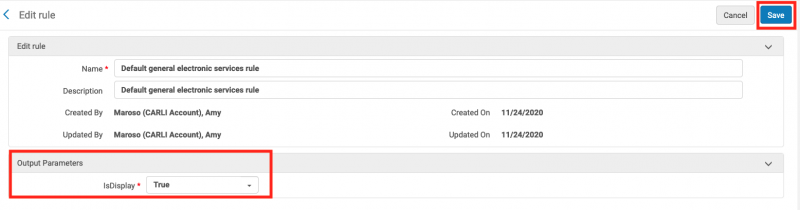
- In the Output Parameters section, set IsDisplay to True.
- Click Save at the top of the page as shown in the screenshot below.