
Alma Database Type and EBSCO Packages
Last edit September 30, 2026.
Introduction
This page is about the EBSCO packages provided by CARLI and provided by the Illinois Secretary of State/Illinois State Library and is for anyone who manages electronic resources in Alma.
Review of Alma Electronic Collections
In Alma, there are three types of electronic collections:
- Aggregator Package
- Selective Package
- Database
The electronic collection type is listed below the name of an electronic collection, no matter what zone you are in (IZ, NZ, or CZ) when viewing the electronic collection. The image below shows where this type is indicated in Alma search results.
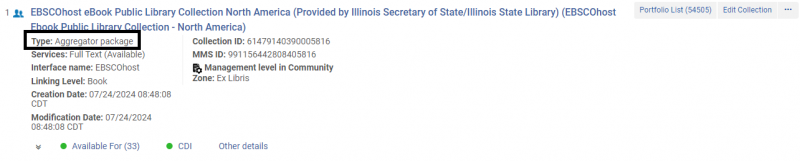
The first two types of electronic collections (Aggregator Package and Selective Package) contain portfolios, the third type (Database) does not. The Database type is a zero portfolio collection that only has one editor level - the Electronic Collection Editor, while the Aggregator Package and Selective Package types have three levels -
- Electronic Collection Editor - where public display name, level URL, and CDI settings are stored.
- Electronic Service Editor - where linking and proxy information are stored.
- Electronic Portfolio Editor - where URL type and dates of coverage are stored.
EBSCO packages that are database type in alma
Currently, there are eight CARLI provided electronic collections and ten Illinois Secretary of State/Illinois State Library provided electronic collections that are the database type in Alma.
Limitations
These electronic collections have no portfolio list (zero portfolios) and no option to “Edit service.” Therefore, you cannot add in linking parser parameters like the EBSCO customer ID that is required for linking. The Level URL is the only place that can control the linking which includes the library’s EBSCO customer ID built into the URL syntax. Here are the lists of each collection which includes their Alma Community Zone Electronic Collection IDs:
| CARLI provided | Alma CZ E-Collection ID | State provided | Alma CZ E-Collection ID |
|---|---|---|---|
| Child Development & Adolescent Studies | 6114026660000041 | AGRICOLA | 6113939290000041 |
| Family & Society Studies Worldwide | 6113916600000041 | Auto Repair Reference Center | 6114000980000041 |
| Family Studies Abstracts | 6113916590000041 | ERIC | 6113916770000041 |
| Left Index | 6113915330000041 | LearningExpressLibrary - Popular Software Tutorials | 6113938780000041 |
| NoveList Plus | 6114030250000041 | LearningExpressLibrary Job & Career Accelerator | 6113928790000041 |
| Urban Studies Abstracts | 6113930000000041 | LearningExpressLibrary.com | 6113928780000041 |
| Violence & Abuse Abstracts | 6114034070000041 | Learning Express PrepSTEP Academic | 615300000000000215 |
| Women’s Studies International | 6114025870000041 | Learning Express PrepSTEP High School | 615300000000000214 |
| NoveList | 6114010270000041 | ||
| NoveList K-8 | 611401026000004 |
options for your library in your alma iz
Here are options for your library to consider how to proceed with these EBSCO collections:
- Do nothing. Many of the I-Share libraries provide access to these database type collections from their library homepages via an A-Z database list or homegrown database list.
- Activate these collections in your Alma IZ. If your library uses Alma Acquisitions you may want to activate these e-collections to link to a PO. Workaround provided below.
- Another reason libraries activate these e-collections is to integrate the Primo VE records with their Springshare LibGuides.
ACTIVATING an alma database type collection in your iz
1. In Alma, using the persistent search bar, select the following: Electronic Collection > Electronic Collection ID > (input Alma CZ E-Collection ID from table above) > CZ search scope.
2. Then, click on "Activate" to the right of the collection name.

3. In the first screen of the Activation Wizard, uncheck the box next to "Mark Bib as suppressed." This collection has no electronic inventory, therefore the collection bib needs to be visible. (From Clarivate documentation - "These collections are activated for patron discovery automatically once they have a defined URL and an associated unsuppressed bibliographic record.") In this screen, you can also change the Public Display Name in the field for Public name (override). You will also want to add your Level URL (override). If you do not know the URL for your EBSCO e-collection, follow up with EBSCO Support by submitting an EBSCO Connect case and/or email CARLI Support. If your library uses EZproxy for authentication, you will set proxy enabled to "yes" and the proxy selected to "Default" or "EZproxy."

4. In the last screen of the Activation Wizard, click "Activate."

5. When the database is activated, you will receive an email confirmation and an Alma notification will appear in the upper right of the screen indicating that it is complete.
If you encounter issues or errors with activating an Alma database type collection, open a CARLI Support ticket.