
Deleting an Alma Electronic Collection in your Institution Zone
Last edited July 21, 2026.
Overview
When your library cancels an electronic subscription or finds a collection is active by mistake, you may delete the e-collection.
These instructions apply to I-Share institutions that are not using Alma Acquisitions at all or at least not with e-Collections. If your institution uses Alma Acquisitions, these steps will not apply in full.
See the Managing Electronic Resources page and section onDeleting Electronic Collections for more detailed Ex Libris documentation on e-Collections.
video tutorial
Demonstration Video of Deleting an Alma Electronic Collection (3:30)
Steps for Deleting an e-Collection in Alma
1. In Alma, check your "User Details" Roles section. Make sure you have these roles active:
- Electronic Inventory Operator
- Electronic Inventory Operator Extended
- CDI Inventory Operator
- Repository Manager
2. Look up the electronic collection in your library's Alma Institution Zone.
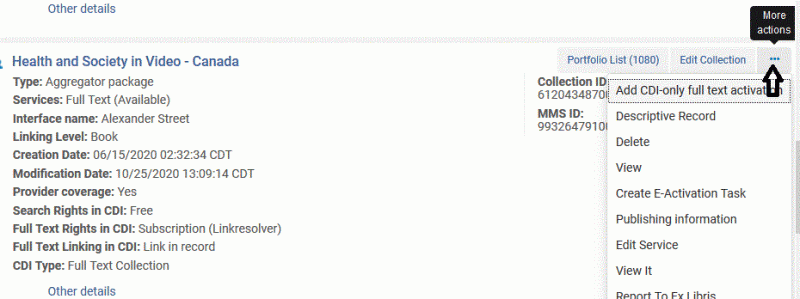
3. For the collection in question, in the image below the Electronic Collection Name is "Health and Society in Video - Canada." Click on the More Actions button (three ellipses) to the right of the Electronic Collection Name.
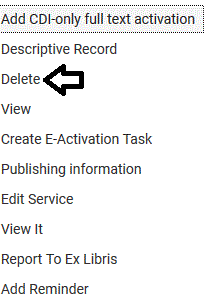
4. From the drop-down menu, select Delete. In the screenshot below, the drop-down menu choices are displayed: Add CDI-only full text activation, Descriptive Record, Delete, View Create E-Activation Task, Publishing Information, Edit Service, View It, Report to Ex Libris, and Reminder. Delete has a black outlined, left pointing arrow next to it.
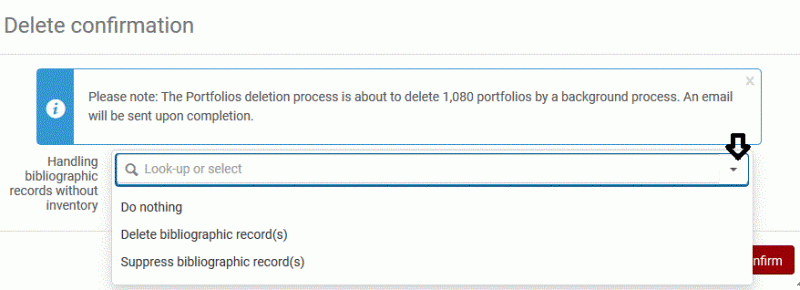
5. Next, you will make a selection from a drop-down menu for how to handle the bibliographic records for the e-Collection and its portfolios (if applicable). The choices shown in the image below are: Do nothing, Delete bibliographic record(s), and Suppress bibliographic record(s). In most cases, you will select Delete bibliographic record(s). However, if you need to keep the bib records, then you should select Suppress bibliographic record(s) to prevent the bib records from displaying in Primo VE. Make your selection and click the Confirm button.
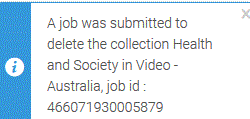
6. When you have submitted the job, you will see a pop-out screen in the upper right corner of Alma that tells you a deletion job was submitted for the collection and will provide a job ID. The example image below shows this pop-out with a blue vertical bar on the left side of the rectangle and a lowercase "i" for information with text about the job. Note: for tiny packages or database-type e-Collections, no job may be submitted to delete the collection.
7. To check on the progress and status of the job, check the Admin > Monitor Jobs list from the Alma facets menu. You will receive an email from Alma when the job is done and if you are still logged into Alma when the job finishes there will be another pop-out screen in the upper right corner of Alma.